 FamilyAtlas
Pages and their titles
The addresses opened in that browser, with page titles and times, so a conversation can start from something specific.
The FamilyAtlas extension goes on your child’s computer, in Chrome or Edge. It shows you the pages opened and the YouTube videos watched in that browser, stops fake and dangerous sites with a warning written for children, and always lets your child see that it is on.
Join early accessEarly access: not listed in the Chrome Web Store yet. Every screen on this page is a real capture of the extension.
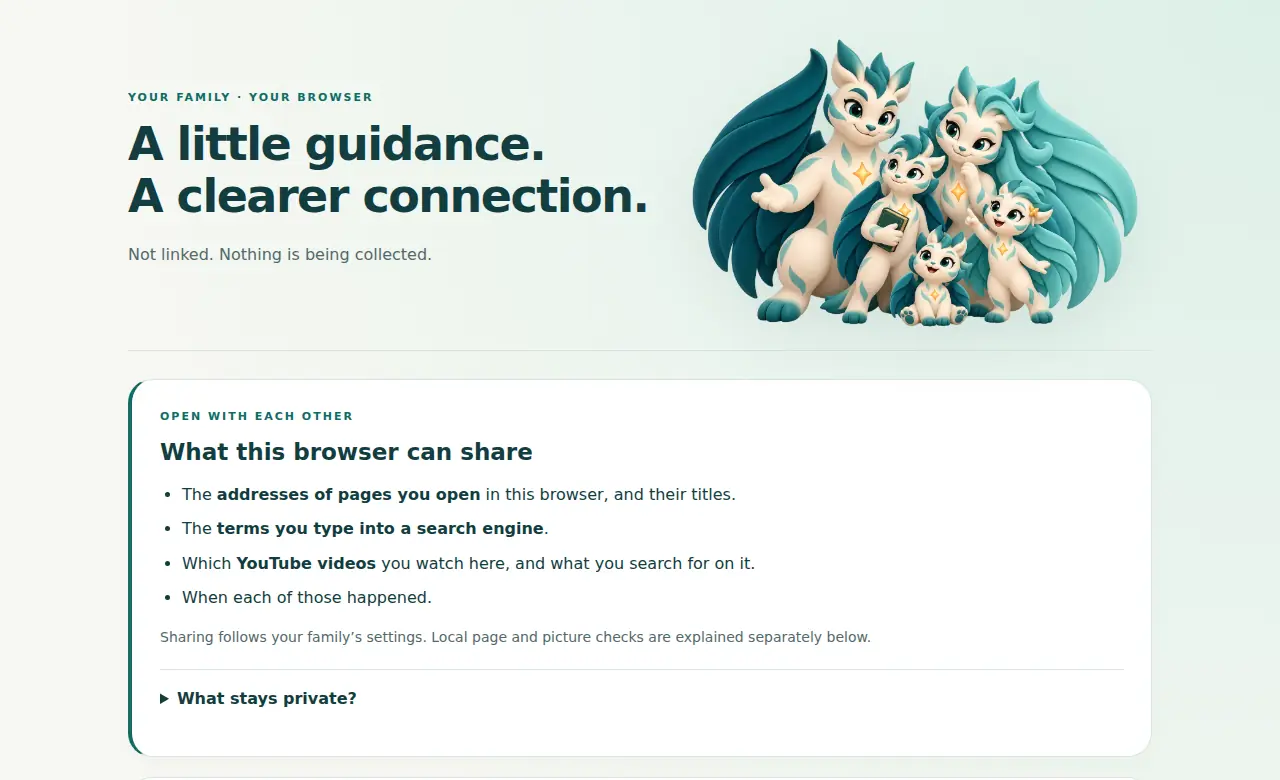

The addresses opened in that browser, with page titles and times, so a conversation can start from something specific.
Which videos were watched on YouTube in that browser. The YouTube app on a phone is a different source.
That a search happened, on which engine and when. Search words are not stored on FamilyAtlas’s servers; with the FamilyAtlas desktop agent (preview) they are checked on the computer, and only a possible safety concern reaches parents, end-to-end encrypted.
The same engine as FamilyAtlas Guard: look-alike bank, shop and game sites and known phishing addresses are blocked with child wording, and a block has no way past.
Once website access is allowed in the extension, it applies the sites you have blocked by name and supported SafeSearch settings.
The toolbar badge says ON, OFF or ! and the window says in one sentence what is being collected. What can be shared is listed before linking.
No hidden mode: the extension explains itself in the same friendly style as the rest of FamilyAtlas.
The setup page lists what this browser can share, and what stays private, before the pairing button.
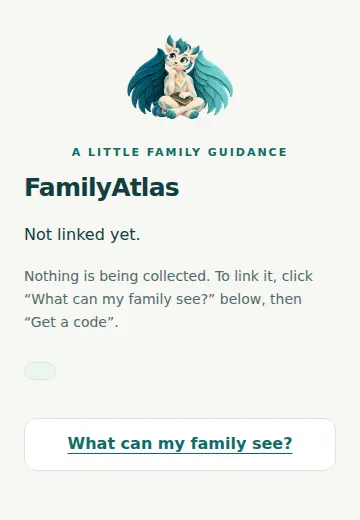
The window says whether the browser is linked and what is being collected right now.
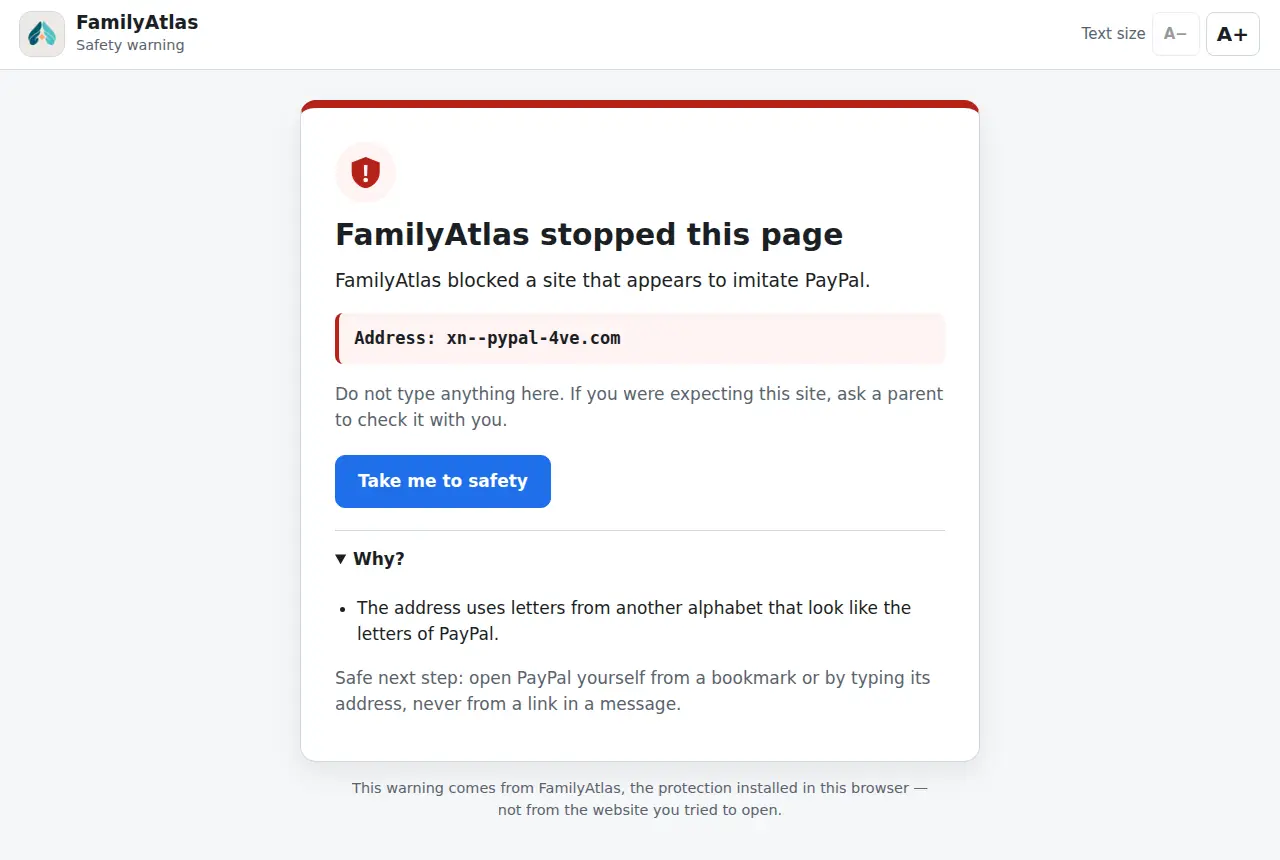
Clear words, one safe button, and “ask a parent to check it with you” instead of a way past.


The extension covers Chrome or Edge where it is installed. It does not see a phone’s browsing, the YouTube app, other browsers or other apps, and it does not filter by category or set time limits. On a computer your child administers, an extension can be removed; the app shows when the browser stops checking in.
Company names appear only as examples of what scammers imitate. FamilyAtlas is not affiliated with them.
Join early accessProtecting your own or a grandparent’s computer? See FamilyAtlas Guard.